How to Turn Off AI Voice on YouTube: Full Guide
You clicked play on a YouTube video and something was immediately wrong. The voice didn't sound like the creator you subscribed to. It was flat. Slightly robotic. The words matched the captions, but the delivery felt like a text-to-speech system reading a script it didn't write. You checked the volume. You refreshed the page. The problem was still there.
What you heard was YouTube's auto-dubbing AI voice. And you're not alone in wanting it gone.
YouTube has been rolling out an automatic dubbing feature that generates AI-voiced audio tracks in different languages and overlays them on videos. When your language settings trigger it, YouTube may play the dubbed track by default instead of the creator's original voice. It happens quietly, with no pop-up warning. One minute you're watching a creator you know, the next minute a robotic voice is narrating their video.
This guide covers everything you need to know to fix it. How to switch back to the original audio track on desktop, mobile, and smart TVs. Why the option sometimes doesn't show up. How to stop it from happening again. And if you're a creator, how to manage or disable auto-dubbing on your own channel through YouTube Studio.
We'll also cover what to do if you actually want intentional, high-quality AI voiceovers for your content, because that's a completely different situation with a completely different solution.
What is YouTube's auto-dubbing AI voice?
YouTube's auto-dubbing feature is designed to make videos accessible to audiences who speak different languages. The platform uses AI to generate a translated audio track in a target language, then serves that track to viewers whose account language or browser language settings match it.
The technology is real, and the intent behind it is genuinely useful. Creators with English-language content can reach Spanish, Portuguese, Hindi, or French-speaking audiences without having to record additional versions of each video. YouTube handles the translation and voice generation automatically. For international reach, that's a meaningful tool.
But the execution creates friction for viewers who didn't ask for it.
The AI voice is generated, not recorded. It won't sound like the creator. It won't carry the creator's energy, cadence, or personality. For channels where the creator's voice is part of the appeal, an AI-dubbed overlay can feel like watching the wrong show. For instructional content, the dubbed delivery sometimes loses nuance or emphasis from the original. For comedy or storytelling channels, it kills the timing.
YouTube auto-dubs video when a creator has enabled dubbing for their channel or when YouTube has enrolled the channel in its partner program dubbing experiments. Not every video on YouTube has a dubbed track. The ones that do show an audio track selector in the player. The ones that don't give you no option to switch.
Your account language settings determine which dubbed track YouTube serves by default. If your YouTube account is set to Spanish, and a video has a Spanish dubbed track, YouTube may play the dubbed version automatically. If your browser is set to a different language than your YouTube account, the behavior can be inconsistent. Different devices sometimes show different defaults for the same account.
That inconsistency is part of why so many viewers find themselves confused when videos suddenly sound different. YouTube doesn't always make the track switch obvious.
 Photo via Unsplash
How to turn off the AI voice on YouTube: desktop
The fastest fix on desktop is switching the audio track directly in the YouTube player. Here's exactly how to do it.
Step 1: Look for the audio track icon
When a video has multiple audio tracks available, YouTube displays a small icon in the bottom-right corner of the video player. It looks like a speech bubble or audio wave symbol. It sits alongside the closed captions button and the settings gear icon.
If you see that icon, click it. A small menu will appear showing the available audio tracks. Select "Original" or the creator's name and language (for example, "English (original)"). YouTube will switch to the original audio immediately.
Step 2: Use the settings gear if the icon isn't visible
If you don't see a dedicated audio track icon, click the settings gear in the bottom-right corner of the player instead. In the settings menu, look for an option labeled "Audio track." Click it. A submenu will show the available tracks. The dubbed track will typically be labeled with the language name (for example, "Spanish" or "French"). The original track will be labeled "Original" or "English (original)" or similar.
Select the original track. The player will switch audio and continue from your current position in the video.
Step 3: Confirm the switch worked
After selecting the original audio track, the voice should change immediately. If the video was playing, it will briefly buffer and resume with the correct audio. If the voice still sounds off, check that you selected the right track. Some videos have more than two tracks available.
If the dubbed track is labeled the same as the original, you may need to try each track to hear which one is the creator's actual voice.
Notes on desktop browser behavior
Chrome, Firefox, Edge, and Safari all display the audio track selector the same way when YouTube is accessed through the web. There's no meaningful difference between browsers in how you switch tracks.
If you're using YouTube in a browser extension or third-party client, the audio track selector may not appear. Load the video directly on youtube.com to access the track settings.
The audio track selection is per-video and per-browser. It doesn't carry over to other videos automatically. YouTube doesn't currently offer a global viewer setting to always prefer original audio across every video you watch. You'll need to switch manually on any video where the dubbed track appears.
How to turn off the AI voice on YouTube: mobile app
The mobile experience is slightly different from desktop but the core steps are the same.
On iPhone and Android
Open the YouTube app and start playing the video with the AI voice. Tap anywhere on the video to bring up the player controls. Look for the caption or settings icons at the top-right corner of the video player. In recent versions of the YouTube app, there's a small audio icon or a three-dot menu that shows audio options.
Tap the three-dot menu (vertical dots, top right of the video). Select "Audio track" from the options that appear. Choose "Original" or "English (original)" from the list. The player will switch tracks.
If you don't see "Audio track" in the three-dot menu, tap the settings (gear) icon instead. It may appear after you tap the video once. From the settings panel, look for Audio track and make the same selection.
Differences between iOS and Android
The YouTube app on iOS and Android has been updated frequently, and the location of the audio track option has moved between versions. If you've updated the app recently and the menu looks different from what you remember, the track selector is usually still in either the three-dot overflow menu or the settings gear. Both are accessible by tapping the player once.
Some older Android devices running older versions of the YouTube app may not show the audio track option at all, even when a dubbed track exists. Updating the app typically resolves this.
Watching in picture-in-picture or background mode
When YouTube is playing in picture-in-picture or background audio mode, you can't access the audio track selector. You'll need to bring the video back to full-screen mode to switch tracks. Once you've switched and confirmed the original audio is playing, you can return to picture-in-picture.
How to turn off the AI voice on YouTube: TV and smart TV
The smart TV experience varies more than desktop or mobile because the YouTube app looks different across different TV platforms.
On a standard smart TV (Samsung, LG, Sony, etc.)
Open the YouTube app on your TV and start the video. Use your remote to navigate to the player controls. On most smart TVs, pressing the select or OK button while a video is playing brings up the player interface. Look for a settings icon or a speech bubble icon.
Navigate to the audio track option using your remote's directional buttons. Select it and choose the original audio track. Confirm your selection. The video will briefly buffer and resume with the correct audio.
On Chromecast with Google TV
On Chromecast with Google TV, the YouTube controls appear when you press the remote's back button or navigate to the player controls area. The audio track selector appears in the same location as on other platforms, usually in a settings or overflow menu within the player.
On Apple TV
The YouTube app on Apple TV displays playback controls when you click the touchpad on the Siri Remote or swipe to reveal the control bar. Look for the audio and subtitles options. They're usually in the same panel that controls closed captions. The audio track selector lists available tracks. Choose the original.
On Roku
Roku's YouTube app places audio settings in the playback controls bar. While the video is playing, press the asterisk (*) button on the Roku remote to open additional options. Audio track settings may appear here. Not all Roku device and app version combinations show this option consistently.
On game consoles (PlayStation, Xbox)
The YouTube apps on PlayStation and Xbox place the audio track selector within the player settings menu. Access it by pressing the options or menu button on your controller while a video is playing. Navigate to audio track settings and select the original track.
If the TV app doesn't show a track selector at all, the video may not have a dubbed track available for your language, which means you're already hearing the original audio.
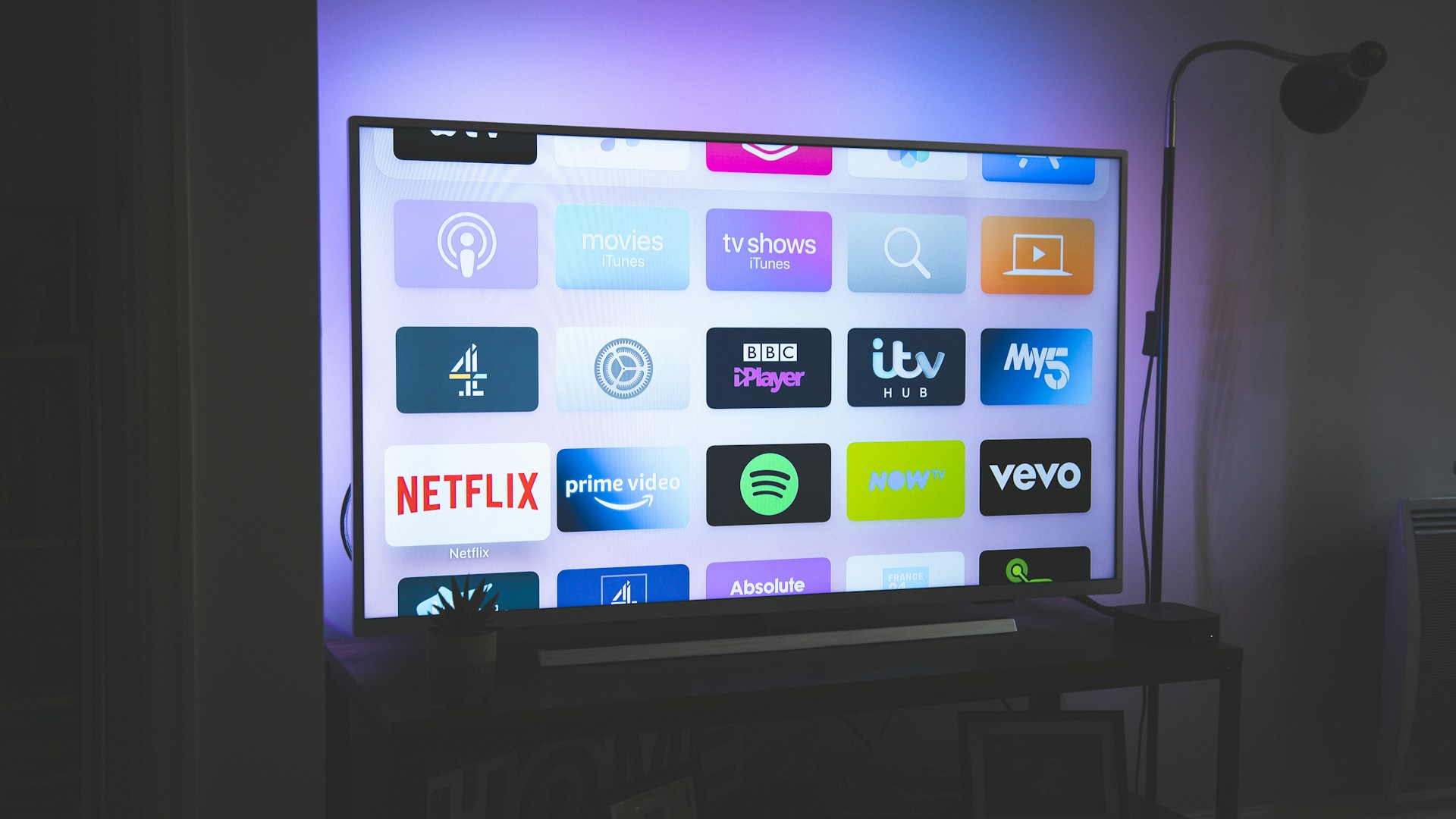 Photo via Unsplash
Why the audio track option sometimes doesn't appear
This is one of the most common frustrations. You're watching a video that sounds AI-dubbed, but there's no audio track option in the player. A few different things could explain it.
The video hasn't been dubbed
Not every YouTube video has an AI-dubbed track. The dubbing feature is limited to channels that have either opted in through YouTube Studio or been selected by YouTube for dubbing experiments. If a video sounds unusual but there's no dubbed track available, the audio quality issue is coming from somewhere else, not from YouTube's dubbing system.
Check whether the creator uses a text-to-speech narrator for their own content. Some YouTube channels are intentionally built around AI narration. Channels that cover lists, facts, or automated content often use TTS tools as part of their production. If that's what you're hearing, there's no dubbed track to switch away from. The AI voice is the original audio.
Your language settings triggered a dubbed track that the player isn't surfacing correctly
There have been reports of YouTube serving dubbed audio without displaying the audio track switch option in some versions of the player. This can happen when the app or browser hasn't been updated, when the video is very recently dubbed, or when YouTube's systems haven't fully indexed the track change.
Try refreshing the page on desktop or force-closing and reopening the YouTube app on mobile. In some cases, the audio track selector appears after a full reload.
The track is embedded, not separate
In some situations, YouTube may have integrated a dubbed track directly into the video rather than serving it as a selectable alternate. This is less common but does happen during early rollouts of the dubbing feature. In these cases, there's no separate track to select, and the only workaround is to find the creator's original upload if they've made it available elsewhere.
Regional rollout differences
YouTube's auto-dubbing feature hasn't rolled out identically in every country. Some regions get dubbed tracks more frequently. Some account languages trigger dubbing more often. If you're traveling or using a VPN, your apparent location can affect which tracks YouTube serves.
Can you permanently turn off YouTube's AI voice?
This is the honest answer: no, not with a single toggle in your account settings.
YouTube doesn't currently offer a viewer-facing setting that says "always play original audio, never play dubbed tracks." The audio track preference you set on one video doesn't carry over to the next video. You have to switch manually on each video where the dubbed track appears by default.
That's a real limitation. Many viewers have requested a global preference, and it's possible YouTube will add one eventually. For now, the workarounds are imperfect.
Changing your account language
One practical workaround is making sure your YouTube account language matches the creator's original language. If you're an English speaker with your account set to English, and a video is dubbed in Spanish, YouTube shouldn't serve you the Spanish dub by default. The system theoretically serves the dubbed track when your account language matches the dubbed language.
To check your language setting, go to your YouTube account settings (click your profile picture, then Settings, then Language). Make sure it's set to the language you want to watch content in.
This doesn't guarantee you'll never see a dubbed track, but it reduces the likelihood for most content.
Browser extensions
Some browser extensions can remember your audio track preference across YouTube sessions or automatically switch to the original track whenever one is detected. These are third-party tools and their reliability varies with YouTube's player updates. If you're frequently encountering unwanted dubbed audio, searching for a YouTube audio track extension in your browser's extension store can provide a more automated solution.
Following up with creators
If you're watching a specific channel where the dubbed audio keeps appearing, letting the creator know is worthwhile. Many creators don't realize their videos are being served in dubbed versions to some viewers, and they can adjust their YouTube Studio settings to change the behavior.
How creators can disable auto-dubbing in YouTube Studio
If you're a creator and you want to control whether your videos are auto-dubbed or remove a dubbed track that's already been applied, YouTube Studio gives you those options.
Opting out of dubbing during upload
When you upload a new video in YouTube Studio, look for the "Audio" or "Language" settings in the upload flow. If YouTube offers dubbing for your channel, there will be an option to opt in or out for that specific video. Opting out means YouTube won't generate or apply a dubbed track.
The exact location of this setting has changed as YouTube has updated the Studio interface. Look in the "Details" tab or the "Video elements" tab during upload. If you don't see a dubbing option, your channel may not be enrolled in the dubbing program, which means your videos won't be auto-dubbed anyway.
Managing existing dubbed tracks
For videos that already have a dubbed track applied, go to YouTube Studio and select the video from your Content list. In the video editor or management panel, look for the "Audio" section. This is separate from the captions section. You should see a list of audio tracks for the video, including the original and any dubbed versions.
From here you can remove individual dubbed tracks. Removing a dubbed track means viewers who were being served that language version will now get the original audio. The change typically takes effect within a few hours.
Channel-level dubbing settings
YouTube Studio also has channel-level settings for dubbing. Go to your channel settings (not video settings) and look for "Dubbing" or "Audio settings" in the feature settings area. Depending on whether your channel is enrolled in the dubbing program, you may be able to disable dubbing globally for all future uploads.
Not all channels have access to these settings. YouTube's dubbing program has been rolling out gradually, and eligibility is based on channel size, content category, and YouTube's selection criteria.
Communicating with your audience
If your channel has been automatically dubbed and some viewers are hearing the AI voice instead of yours, a community post or a quick mention in your next video can help. Tell viewers to check the audio track selector in the settings gear and select your original audio. Most viewers don't know this option exists until someone tells them.
You might also include a brief note in your video descriptions pointing viewers to the audio track settings if this is a recurring issue for your channel.
How to report a bad dub
If you're watching a video with a dubbed track that's significantly inaccurate, misleading, or harmful, you can report it to YouTube.
On desktop, click the three-dot menu below the video (not the one inside the player, but the one in the video description area). Select "Report." In the report options, choose "Inaccurate translation or dubbing" if that option is available, or select the closest applicable category.
On mobile, the three-dot menu appears next to the video title when you're on the video page. Tap it and select "Report" to access the same options.
YouTube reviews reports and can remove or correct dubbed tracks. The feedback also feeds into their quality improvement systems for the AI dubbing models.
Beyond the formal report option, YouTube has feedback mechanisms specifically for dubbed content. While watching a dubbed video, you may see a small thumbs down or feedback button near the audio track indicator. Using it sends a direct signal about the quality of that specific dubbed audio track.
If you're a creator and a bad dub of your content is creating confusion or reputational issues, you can report it through the Studio and also escalate through YouTube Creator Support if the issue is significant.
The difference between YouTube's auto-dub and intentional AI voiceovers
Here's where it's important to separate two things that often get confused.
YouTube's auto-dubbing is something that happens to videos. It's applied by the platform, not chosen by the creator. It replaces the creator's original voice with an AI-generated translation. Most viewers experiencing the problem with YouTube's AI voice are dealing with this, and everything in this guide up to this point addresses how to manage it.
Intentional AI voiceovers are a completely different situation. Some creators deliberately use AI-generated voices as part of their content. They choose a specific voice, write scripts for it, and produce content where the AI voice is the point, not an accident. These creators aren't frustrated by the AI voice. They built their content around it.
If you're a creator in the second category, or if you want to become one, that's a very different conversation. Choosing the right AI voice for your channel, writing scripts that sound authentic, and building content around recognizable character or celebrity voices is a creative strategy that's separate from YouTube's auto-dubbing situation.
This is where TryAIVoices fits in. The platform gives creators access to a library of over 500 character and celebrity voices for intentional, controlled AI voiceover production. You choose the voice. You write the script. You generate the audio. You decide exactly what goes into your content.
If you've ever thought about building a YouTube channel around a recognizable voice, or adding character narration to your existing content, our complete guide to using an AI voice generator for YouTube covers the full workflow. It's the opposite of this guide. This guide is about turning off a voice you didn't want. That one is about choosing a voice you do want and making it work for your content.
The full voice library on TryAIVoices includes celebrity voices, cartoon character voices, politician voices, and gaming character voices across dozens of categories. Creators use them for comedy channels, narration channels, gaming commentary, and educational content, all with audio they control completely.
That's the distinction worth keeping clear. YouTube's auto-dub is a platform feature you may not want on your content. TryAIVoices is a tool creators choose to use deliberately.
 Photo via Unsplash
Understanding YouTube's dubbing program
YouTube built its auto-dubbing system with the Aloud tool, developed by YouTube's Area 120 experimental projects team. The feature uses AI to transcribe, translate, and generate dubbed audio for eligible videos. It was designed to help creators expand internationally without the cost and complexity of hiring multilingual voice actors or dubbing studios.
For creators with primarily English-language audiences who want to reach Spanish, Portuguese, or Hindi speakers, the feature can unlock meaningful reach. Videos that have been dubbed through YouTube's program sometimes show significantly higher view counts from the target language markets than pre-dubbing.
The problem for many creators is that the AI voice doesn't sound like them. Viewers who discover a creator through a dubbed video and then watch other content may not recognize the creator's actual voice. It breaks the personal connection that makes individual creators worth subscribing to in the first place.
The other issue is accuracy. AI translation and voice generation work well for straightforward informational content. They struggle with idioms, humor, cultural references, and anything that relies on delivery rather than just words. A joke that lands in the original timing and cadence often doesn't survive translation into a flat AI voice.
YouTube has acknowledged these limitations and continues to improve the dubbing models. But improvement takes time, and many creators have chosen to manage or disable dubbing rather than wait for better quality.
For viewers, the key is knowing you have the option to switch. For creators, the key is knowing you have control over whether and how your content gets dubbed.
Working with YouTube's audio track system as a power user
Once you understand how YouTube's audio track system works, you can navigate it more efficiently.
The audio track selector in the player isn't just for dubbed content. YouTube uses the same system for videos that have multiple audio versions for other reasons, including videos with audio descriptions for visually impaired viewers, live streams that switch between commentary tracks, and videos with multiple language versions uploaded manually by the creator.
This means the audio track button can appear even on videos that aren't auto-dubbed. If you see an audio icon in the player and you're already watching the original-language content, click it to verify which track is playing. The currently active track is usually indicated with a checkmark or highlighted text.
For creators who want to upload multiple audio versions of their content manually, the same YouTube Studio audio management panel lets you upload a secondary audio track. This is separate from the auto-dubbing program. You can upload your own professionally recorded translation or a music-only version of your video. Manual audio tracks give you full control over quality and accuracy in a way that auto-dubbing doesn't.
The guide page and tips page on TryAIVoices have additional resources for creators who want to understand how AI-generated audio works and how to use it intentionally in production. The movie trailer AI voice guide is also useful for creators exploring dramatic narration styles that work well as intentional overlays.
When YouTube's AI voice isn't the cause
It's worth ruling out a few other possibilities if you're hearing unexpected audio on YouTube and the audio track selector isn't showing up.
Some YouTube creators use text-to-speech narration as their primary production tool. Channels that produce list videos, fact channels, automated news summaries, or certain types of educational content sometimes use AI narration by design. If the channel has consistently had that style, what you're hearing is the creator's intentional choice, not a YouTube platform feature.
Similarly, some channels produce content in a language other than their country of origin and use AI voices to generate native-sounding narration for that market. This is legitimate content production that uses AI voice tools as part of the workflow.
If a video sounds AI-narrated and there's no dubbed track option in the player, that's almost certainly what you're dealing with. The creator made that audio. You can always check the video's comments to see if other viewers have noted the AI narration style, which often tells you quickly whether this is the creator's format or an unexpected platform feature.
For context on how creators use AI voices deliberately, the how to make text to speech guide explains the full process. Understanding how creators use these tools helps distinguish between intentional AI narration and YouTube's auto-dubbing.
Creators working with AI voice tools deliberately include channels that use the Morgan Freeman AI voice for documentary-style narration, channels using the Obama AI voice for educational commentary, channels built around Spongebob or Peter Griffin voices for comedy, and channels using character voices like Batman or Arnold Schwarzenegger for gaming commentary. All of these are intentional creative choices, not accidents.
The politicians voice library is especially popular for commentary and satire channels. The Trump voice generator has a particularly large following among creators who build reaction and comedy content. These creators didn't stumble into AI audio by accident. They chose it and built audiences around it.
You can explore how this kind of intentional AI voice content works across the TryAIVoices library to understand the distinction between platform-applied dubbing and deliberately produced AI voice content.
Privacy, data, and YouTube's AI dubbing
A question that comes up from creators is what happens to their voice data when YouTube applies dubbing. YouTube's dubbing process uses the original audio to generate a translation and new voice, but the AI dubbing models aren't trained on individual creators' voices in a persistent way that would let the platform replicate that specific creator's voice elsewhere.
The dubbed audio track is a separate AI-generated voice that sounds similar to a generic text-to-speech system. It's not a clone of the creator's voice speaking in another language. This distinction matters for creators concerned about voice identity and misuse.
The AI voice cloning regulation news guide covers the evolving landscape of voice AI regulations and what creators should know about their rights. The is voice AI safe guide addresses broader questions about privacy and safety in AI voice technology.
Understanding where the line is between platform-applied AI dubbing and more personalized voice cloning helps creators make informed decisions about participating in YouTube's dubbing program.
How auto-dubbing compares across platforms
YouTube isn't the only video platform experimenting with AI dubbing. TikTok has its own AI voice features, though they work differently. Meta platforms have translation and captioning tools. The approaches vary.
On TikTok, the AI voice feature is something creators apply intentionally as a production tool rather than something the platform applies automatically to existing content. This is a meaningful difference. The TikTok AI voice guide covers how TikTok's voice system works in detail.
YouTube's approach of applying dubbing retroactively to existing videos is more aggressive and creates more viewer confusion than opt-in creator tools do. Most of the frustration viewers feel when they ask how to turn off the AI voice on YouTube comes from this automatic application without clear notification.
Platforms that are transparent about when AI audio is being applied and that give viewers easy controls tend to get less negative feedback. YouTube's audio track selector is functional once you know it exists, but it's not prominently surfaced.
For creators evaluating AI voice tools across platforms and comparing their options, the best AI voice generators guide and the AI generated celebrity voices guide provide broader context on how different systems work. The Akool AI voice generator review covers one of the other tools in this space in detail.
Getting the most out of YouTube's audio settings
Beyond the auto-dubbing situation, YouTube's audio settings are worth understanding for other reasons.
Closed captions and audio description tracks are managed through the same system as dubbed audio tracks. If you're looking for audio descriptions for accessibility purposes, check the audio track selector rather than the captions button. Some videos have audio description tracks available that aren't prominently advertised.
On desktop, you can also control playback speed, which affects how AI-voiced content sounds. At 0.75x speed, AI narration often sounds slightly more natural because the timing stretches and the flat delivery becomes less noticeable. At 1.25x, AI voices can sound more rushed. These aren't fixes for audio you don't want, but they're useful for tolerating content while you look for the track selector.
YouTube also continues to add features to the audio track system. Creator tools for uploading and managing multiple audio versions have improved. Viewer controls are likely to become more prominent as dubbing becomes more widespread.
Following TryAIVoices on our main site keeps you updated on AI voice developments. The intersection of YouTube's platform features and creator tools for intentional AI voice production is evolving quickly. What's true about the audio track system today may look different as YouTube continues to develop these features.
Frequently asked questions
Why does YouTube keep changing my audio to a different voice?
YouTube is automatically serving a dubbed audio track instead of the creator's original audio. This happens when your account language settings match an available dubbed track for the video. Fix it by clicking the settings gear in the player, selecting "Audio track," and choosing the original version. The switch is immediate.
Can I make YouTube always play original audio?
Not with a single global setting. YouTube doesn't currently offer a preference that permanently defaults all videos to original audio. You have to switch manually on each video where the dubbed track appears. Changing your YouTube account language to match the content's original language (go to your profile, then Settings, then Language) can reduce how often dubbed tracks are served by default.
Why doesn't the audio track option show up?
The audio track selector only appears when a video has multiple audio tracks available. If the option isn't showing up, the video likely hasn't been dubbed, meaning what you're hearing is the original audio. If the video sounds like AI narration and no track selector appears, the creator is probably using AI voice tools intentionally as part of their production style.
How do I turn off AI dubbing on my YouTube channel as a creator?
Go to YouTube Studio, select the video from your Content list, and look for the Audio section in the video settings. From there you can view and remove individual dubbed tracks. For channel-level settings, check your channel settings in Studio for dubbing options. Not all channels have these settings, as the dubbing program has a staged rollout.
Will removing a dubbed track affect my video's international reach?
Removing a dubbed track means viewers in the target language market will hear the original audio instead of the translation. This can reduce comprehension for non-native speakers of your language. If international reach matters to your channel, consider keeping dubbed tracks but adding clear information in your description about how to switch to the original if viewers prefer it.
Is the dubbed audio always a translation, or can it be in the same language?
YouTube's auto-dubbing generates translated audio in a different language than the original. The dubbed track is always a translation. If a video sounds off but the language is the same as what you'd expect, it's either a creator using AI narration intentionally or an audio quality issue unrelated to YouTube's dubbing system.
Can viewers tell when a video is being auto-dubbed?
Sometimes. The dubbed voice typically sounds different from the creator's voice because it's generated AI audio in a translated language. If you're watching in your native language and the voice sounds robotic or mismatched, checking the audio track selector will confirm whether a dubbed track is active. The currently playing track is highlighted in the selector menu.
What if I want an AI voice for my own YouTube content?
That's a completely different situation from turning off an unwanted dub. If you want to use AI voices deliberately for narration, comedy, gaming commentary, or character-based content, TryAIVoices gives you access to over 500 voices you control completely. You choose the voice, write the script, and generate audio on your terms. Check the full voice library or read the AI voice generator for YouTube guide to see how creators are building channels with intentional AI voiceovers. The gaming voice library is a great starting point for gaming channels, and the cartoon voice library is where comedy channels tend to begin.
Does this affect YouTube Shorts?
Yes, YouTube's audio dubbing can appear on Shorts as well as long-form videos. The audio track selector may not appear in the Shorts interface in the same way it does in the standard player. If a Short sounds dubbed, checking the full video page (if the Short has one) may give you access to the track selector.
YouTube's auto-dubbing AI voice can be disorienting when it appears without warning. But fixing it is straightforward once you know where to look. The audio track selector in the settings gear, whether on desktop, mobile, or TV, switches you back to the original audio immediately. Creators who want more control can manage their dubbed tracks directly in YouTube Studio.
The broader ecosystem of AI voice tools is worth understanding on its own terms. Platform-applied dubbing is one thing. Deliberately produced AI voice content is another. If you've been inspired by AI voice channels on YouTube and want to build your own, explore the TryAIVoices library and see what's possible with the celebrity voices and character voices available to subscribers.
Start with a voice you know your audience will recognize. Browse the pricing plans to find the right subscription for your production volume. And check the guide for everything you need to get started generating audio quickly.